Sign up for new-member prices on your first plan

Model

Type

Prompt

0/2000

Try an example

CostFree

Five GPT Image 2.6 results to inspect

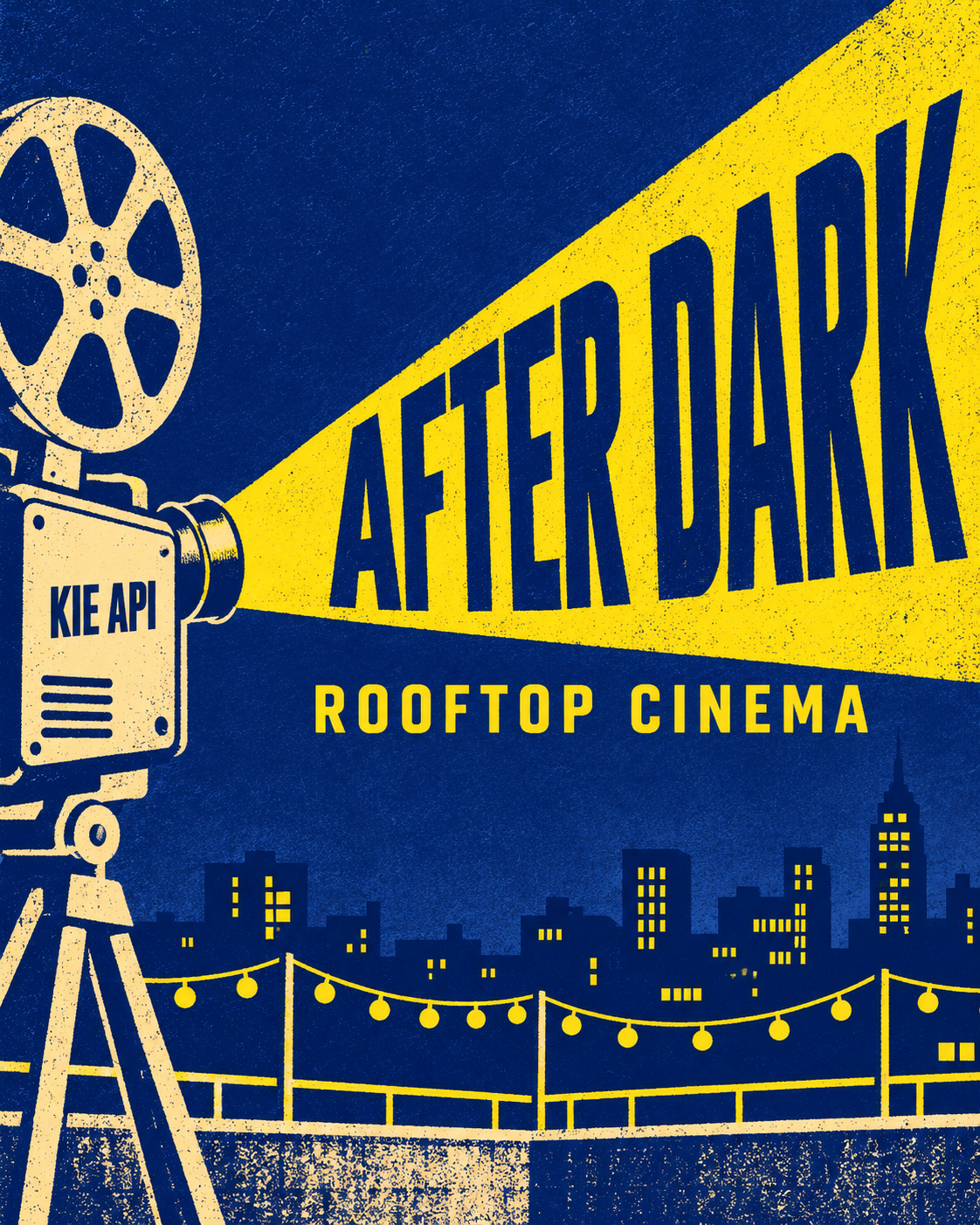
Blue and yellow After Dark rooftop cinema poster with a film camera and city skyline

GPT Image 2.6

Create a blue and yellow screen-printed poster for a rooftop cinema. Use the exact headline “AFTER DARK,” reserve a clear line for the venue, and keep the skyline away from the lettering.

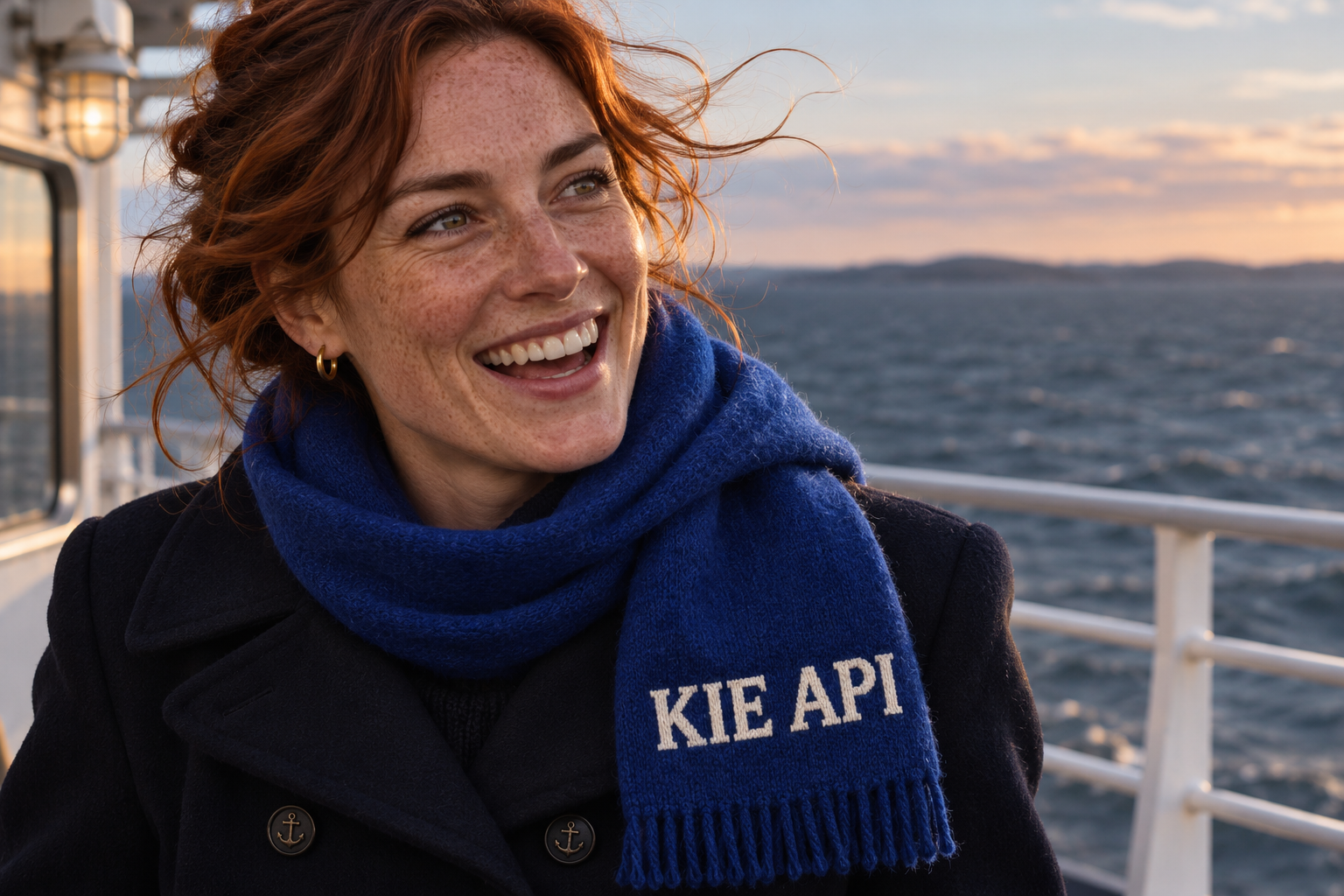
Smiling adult on a ferry in a blue knit scarf at sunset

GPT Image 2.6

Create an editorial portrait of an adult on a ferry at dusk. Show natural wind in the hair, a cobalt knitted scarf, and soft warm light on the face against a cool sea.

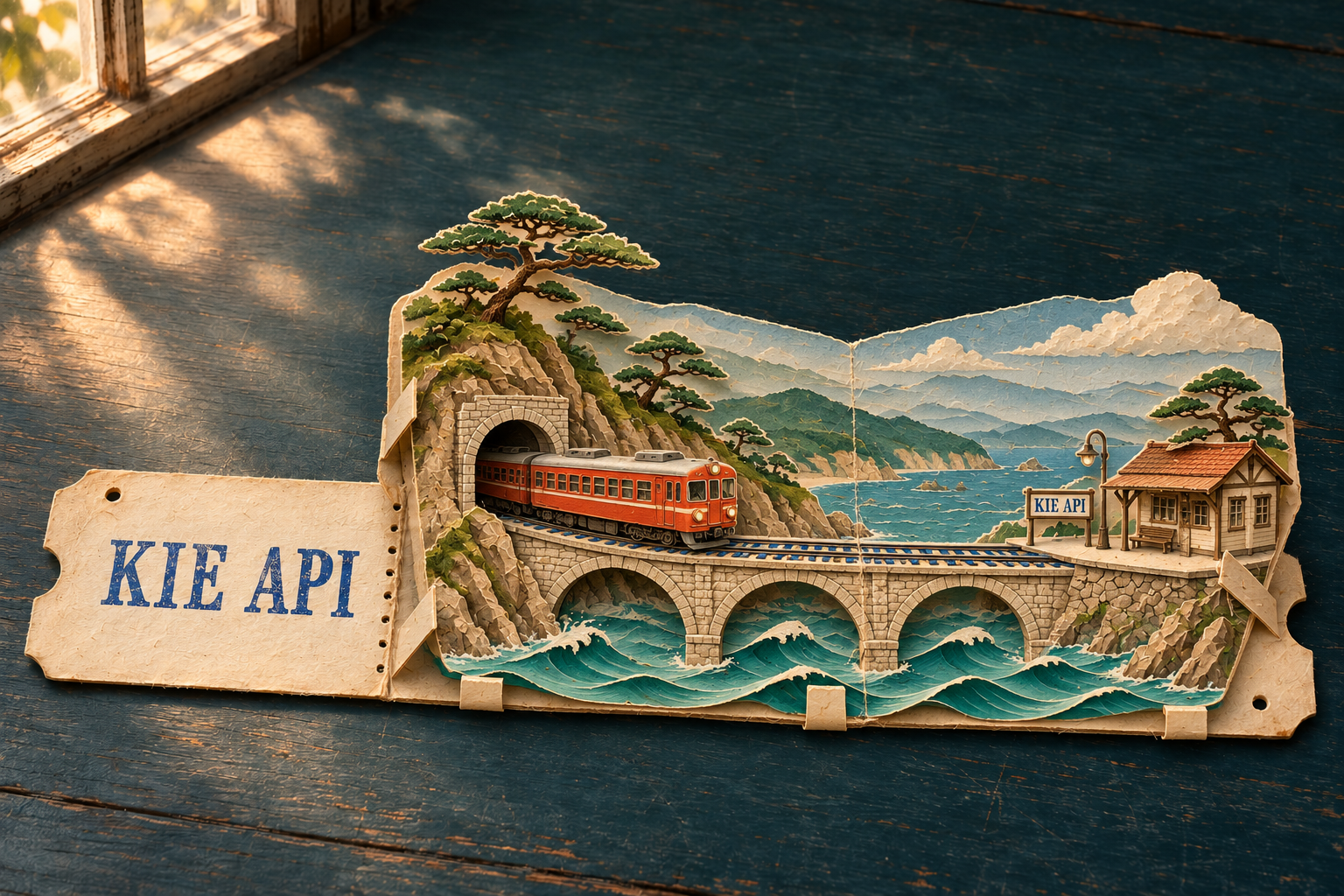
Layered paper diorama with a red train crossing a stone bridge over water

GPT Image 2.6

Use the reference for the landscape layout. Reimagine it as a paper diorama with a red train on a stone bridge, distinct layers of water and mountains, and side lighting that reveals the paper edges.

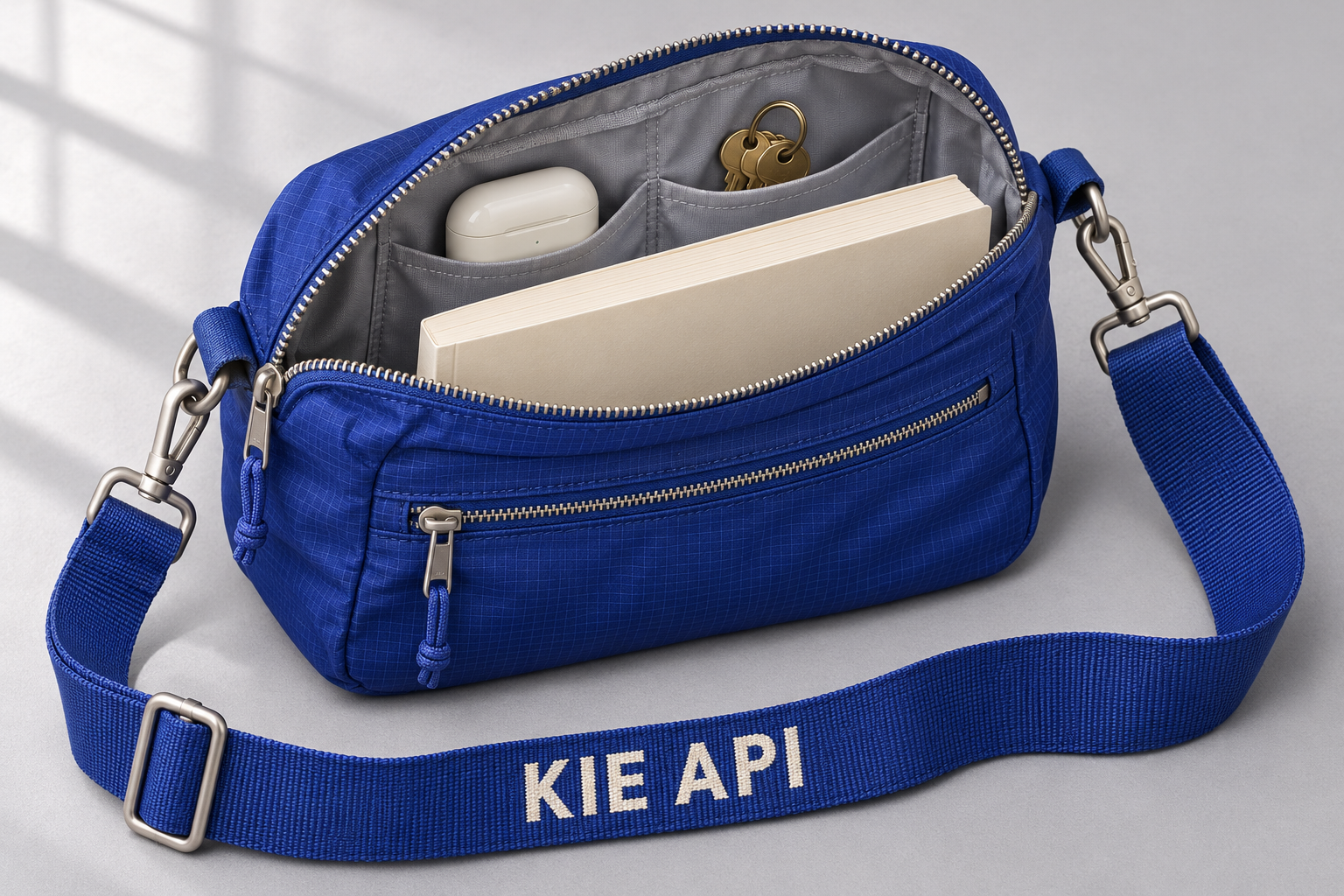
Open cobalt blue travel bag showing its pockets, zipper, and shoulder strap

GPT Image 2.6

Photograph a cobalt travel bag from a three-quarter angle. Open the main zipper enough to reveal the lining and a few everyday objects. Keep the hardware, stitching, and strap connection clearly visible.

  1. 1Write your prompt

    Describe what you want to create, or start from an example.

  2. 2Pick the settings

    Choose the mode and the options this model supports, and add reference files if you have them.

  3. 3Generate and download

    Results appear here and are saved in My creations.

GPT Image 2.6 for image generation and reference-led editing

Use GPT Image 2.6 to turn a brief into a still image or revise a visual you already have. Pick an output ratio for the channel, describe what should stay intact in an edit, and compare the result against your source before publishing.

Five GPT Image 2.6 results to inspect

These images are published by Kie.ai, not generated in Buble. They give you concrete details to evaluate: headline spacing, readable small labels, textile texture, facial expression, and depth in layered artwork. The accompanying briefs are new prompts you can adapt, not the original provider prompts.

Try a similar brief

Create a blue and yellow screen-printed poster for a rooftop cinema. Use the exact headline “AFTER DARK,” reserve a clear line for the venue, and keep the skyline away from the lettering.

Choose a Variant

GPT Image 2.6 Flare or Sunburst?

The choice is about the cost of getting a result you can use. When several directions are still open, iteration speed matters. When a design is approved and the edit is narrow, preservation matters more than the speed of a single run.

GPT Image 2.6 Flare for fast layout decisions

Start with Flare for competing crops, campaign concepts, or different relationships between a subject and a headline. OpenAI positions it for speed and improved layouts. Compare candidates at the same ratio so you can judge composition rather than a change in framing.

GPT Image 2.6 Sunburst for careful revisions

Choose Sunburst when material detail, a recognizable character, or the integrity of a reference matters. It is the detail-oriented variant, not a lock on every pixel. Compare the source and result at the same scale, especially around labels, faces, and high-contrast edges.

Compare GPT Image 2.6 on your own brief

Keep the prompt, references, aspect ratio, and resolution unchanged. Switch only the variant and score the results on the brief: hierarchy, identity, edge quality, and the amount of manual repair. OpenAI reports faster generation for the release, but that is not a Buble turnaround guarantee.

From Brief to Deliverable

A repeatable GPT Image 2.6 workflow

The best prompt is one you can check. Decide what would make the image unusable before you submit it, such as a cropped product, changed packaging, or insufficient room for text.

Step 01

Give GPT Image 2.6 a destination

For Text to Image, describe what the asset is for, the subject, the camera or illustration viewpoint, and the required empty space. A shop thumbnail needs a recognizable silhouette at small size; a wide banner needs a safe area for live text that survives responsive cropping.

Step 02

Tell GPT Image 2.6 what each reference does

For Image to Image, upload the source first. If you need another reference, name its purpose and refer to its position: “Keep the bottle in image 1; borrow only the lighting from image 2.” Do not let a style reference quietly override a product or character reference.

Step 03

Define what GPT Image 2.6 must preserve

Keep the camera angle, label placement, and bottle proportions fixed in the brief before requesting a different surface or background. Save the original and make one meaningful change per round. If a revision drifts, return to the last approved source rather than building on the mistake.

Step 04

Check GPT Image 2.6 output before handoff

Inspect spelling at full size, crop the image to its intended viewport, and compare repeated objects or people side by side. If the image includes a product claim or an important number, replace that text with editable type. A polished preview is not proof that every detail is correct.

Practical Use Cases

Where GPT Image 2.6 fits in real production

Choose the workflow based on what must be accurate. Use generation for art direction and visual options; use your original source and a bounded edit when the asset has specific details you cannot afford to lose.

Product campaigns with a fixed hero item

Use GPT Image 2.6 with a clear product photo to test a seasonal setting or a new light direction. Check cap shape, package dimensions, and any visible branding against the product. If the item must match a retail listing exactly, keep the approved product image and composite the generated setting separately.

Posters and editorial layouts

Ask GPT Image 2.6 for a short quoted headline and specify its location. Keep dates, prices, and calls to action editable in your design tool. Compare the result at feed size, where type hierarchy matters more than the amount of fine texture in the background.

A character across several scenes

Give GPT Image 2.6 one clean, approved character reference and name identifying details such as the hair shape, jacket color, or accessory. Vary the action and framing separately. Line up multiple outputs on a contact sheet to catch small shifts that are harder to see in isolation.

Output and Cost

GPT Image 2.6 controls available in Buble

Buble uses Kie.ai for the Flare and Sunburst still-image workflows. A feature announced for ChatGPT or OpenAI's direct API is not automatically an option in this generator.

Ratio and resolution solve different problems

Set GPT Image 2.6 to 1:1 for a square tile, 4:5 for a portrait feed, or 16:9 for a landscape panel. Use 1K to settle the composition; choose 2K or 4K when the final crop or delivery size needs more detail. Check the actual pixel dimensions before laying out a print asset. If a single campaign needs wide and vertical versions, review the crops before increasing resolution. A larger image will not move a subject out from under a headline. Adjust the brief or make a new composition for the narrower slot.

Prepare a PNG for the next tool

GPT Image 2.6 exports PNG stills here, even though Kie also documents JPEG and WebP output. The background control is available at 1K only. For a cutout, choose Transparent and inspect the edge on both light and dark surfaces. Keep the original PNG if the layout needs an alpha channel; make a separate compressed copy for delivery.

How GPT Image 2.6 is billed

Kie.ai meters this model by token usage, so two jobs at the same resolution do not necessarily cost the same. Buble settles credits from completed provider usage rather than advertising a fixed per-image price. An authorization hold can apply before generation. Start with only the references you need.

FAQ

GPT Image 2.6 questions before you generate


Start

Start with one GPT Image 2.6 brief

Test one crop or one reference-led edit before committing to a batch. Read the OpenAI release notes for model context and the Kie.ai model page for the example gallery and provider limits. You can also compare GPT Image 2.5 and browse the AI image generator.